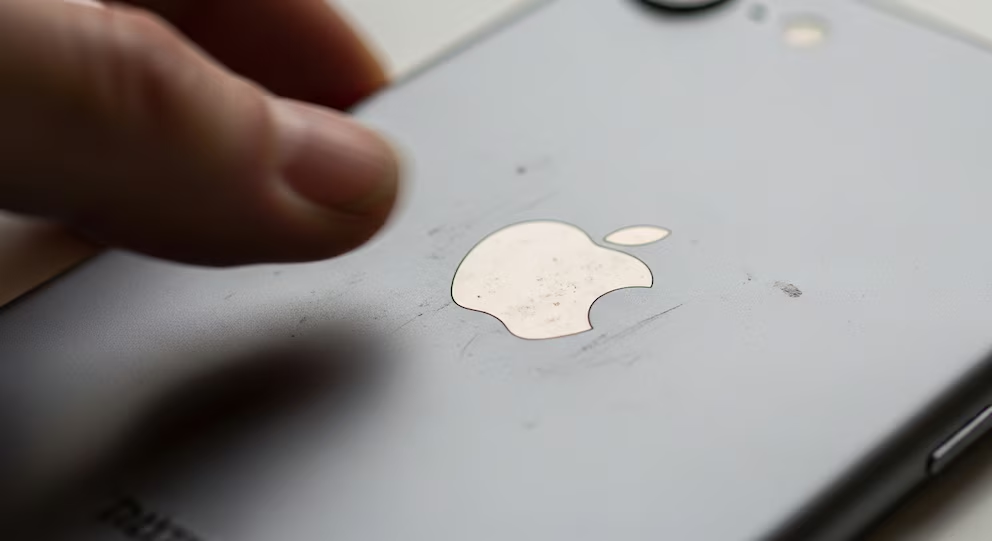
Apple incorporated in its iPhone a function that facilitates access to essential tools through gestures on the back of the device. One of the most practical utilities is the possibility of turning on the flashlight with just two taps in the area where the apple characteristic of the Apple logo is located. This function, initially designed for accessibility, has become popular among those seeking speed and convenience.
How to activate the flashlight by tapping the back
The function is called
'Back Tap' and is available from recent iOS versions. It allows you to configure specific actions by giving two or three gentle taps on the back of the iPhone. To activate it and assign the flashlight, you must follow a few simple steps:
- Open the Settings app on the iPhone.
- Go to the Accessibility section.
- Within Accessibility, select the ‘Touch’ menu.
- Choose the ‘Back Tap’ option.
- Select whether you want to use two or three taps.
- Choose ‘Flashlight’ from the list of available actions.
The setting is in the Accessibility menu within the iPhone settings.
We recommend reading:
Once configured, the flashlight turns on automatically every time two gentle taps are made on the back of the device.
Although it is not essential to tap exactly on the logo, that area is usually the most effective for the sensor to detect the gesture accurately.
The system uses the accelerometer and motion sensors of the iPhone itself to recognize taps. It does not require applying force or excessive pressure; two light taps are enough for the device to execute the assigned action. This solution offers an efficient alternative when traditional access is inconvenient, such as when wearing gloves or when only one hand is available.
Customizing Actions with 'Tap Back'
Beyond the flashlight, the
'Back Tap' function allows you to customize gestures to perform various actions. The user can assign a function for two taps and another different one for three taps. Among the available options are:
- Take a screenshot.
- Open a specific application.
- Access the device's search engine.
- Lock the screen.
- Activate other useful iOS features.
The device's sensors detect touches without the need to apply force.
This versatility turns the back of the iPhone into a panel of personalized shortcuts, adapting to the routines and needs of each user.
Alternatives: Voice Commands with Siri
In addition to physical gestures, Apple offers the possibility of turning on the flashlight via
voice commands through Siri. The basic command is "Hey Siri, turn on the flashlight", which activates the light immediately. For those looking for a touch of fun, there is also the option of saying "Hey Siri, Lumos Maxima", in reference to the spell from the Harry Potter saga that produces light in the stories.
Although some users have pointed out that Siri may have limitations in certain contexts, this function is useful when hands are occupied or physical access to the device is not feasible.
Siri also allows you to turn on the flashlight using custom voice commands.
The integration of gestures and voice commands for functions like the flashlight responds to the demand for agile and intuitive solutions. Many users experience the need to quickly access light in unforeseen situations, where traditional accesses can be impractical. The new methods reduce the necessary steps and allow action even in low-light conditions or when the device is busy with other tasks.
The 'Back Tap' function is thus added to Apple's accessibility and personalization ecosystem, improving the user experience and offering effective alternatives for everyday use.

 Spanish